
Accessing the Report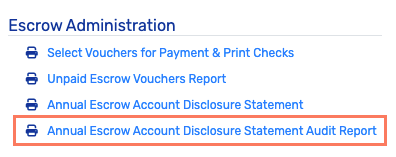
To find the Annual Escrow Account Disclosure Statement Audit Report, navigate to Loan Servicing > Tasks & Reports > Escrow Administration.
This report is available without any additional permissions required in order to access, and located at the bottom of the Escrow Administration Tasks and Reports.
Generating the Report
Click the link to generate and download the report. The file downloads as an .xlsx file and always reflects the most recent Annual Escrow Account Analysis on file for your company database.
If no analysis has ever been run for that database, the following message appears:

Using the Report
The report is a single worksheet divided into three labeled sections. These are sections within one tab, not separate tabs.
Section 1: Escrow Accounts Analyzed
Every account included in the analysis, along with its Shortage, Deficiency or Surplus detail.
Only one of the three applies to any given account. The other two columns display a dash.
Section 2: Escrow Accounts Excluded
Every account left out of the analysis, along with an Excluded Reason:
-
On-Hold
-
30+ Days Late
-
Foreclosure
-
Manually Excluded
-
Excluded Category: Paid Off, Bankruptcy, Service Released, Serviced by Others, or REO
Manually Excluded means a user unchecked that loan from the list before finalizing the analysis.
Section 3: Escrow Accounts Analyzed or Excluded
The full combined list of both groups, with the Computation Date and Status for each account. Use this section when you need a single reconciled list — for example, to confirm that every active escrow account in the database was accounted for one way or the other.
Additional Notes
The report reflects one snapshot, and that snapshot is shared. The report always pulls the most recent analysis for the company database, regardless of who ran it. If a colleague runs a new analysis after you generate your report, your next download will reflect their run, not yours.
Previous snapshots cannot be retrieved. Once a newer analysis completes, the earlier snapshot is no longer accessible through this report. If you need to retain a specific run for your records, save the downloaded file before a new analysis is performed.
Audit Trail Updates
Every successful report generation is recorded in Pro > Events Journal. The entry captures:
-
The user who generated the report
-
The date and time
-
The company database
-
The action type
-
A reference to the analysis snapshot that was used