
Add the document to test in a loan
- Open a test loan, a previous closed/denied/withdrawn loan, or a current in progress loan with good data for testing.
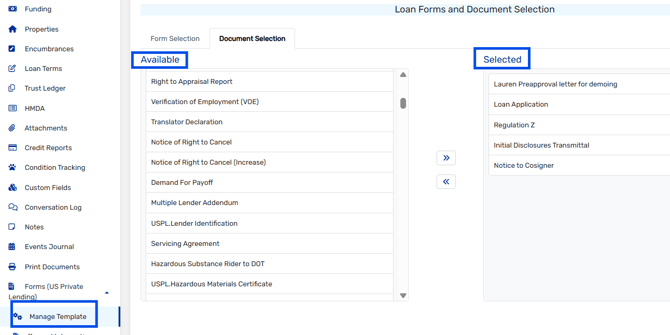
- In the loan, navigate to Manage Template > Document Selection.
- In the Available column, click on the the document or group you want to test and drag your document or document group to the Selected column.
- Click Apply.
Generate the document
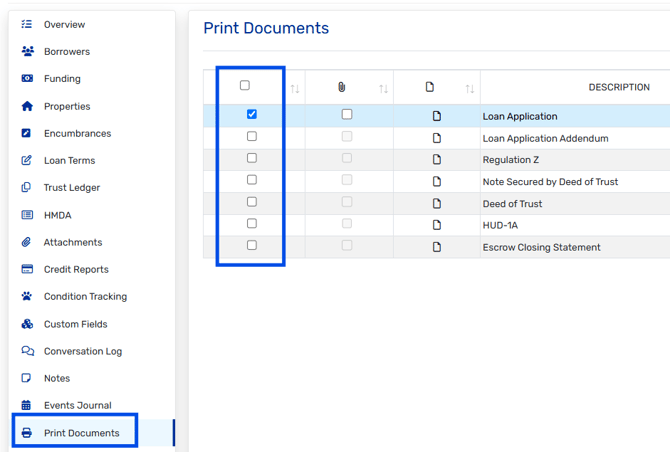
- Go to Print Documents.
- Check the box next to your document or group.
- Choose the format and options:
|
Click |
You get |
Use it to |
|
Preview |
A PDF |
Check the layout and data |
|
Download
|
A Word file |
Make a one-off edit for this loan only |
|
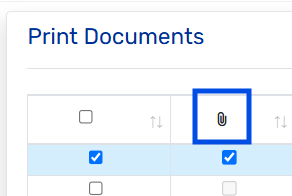
Paperclip
|
A copy saved to the loan’s Attachments |
Keep a record of what you sent |
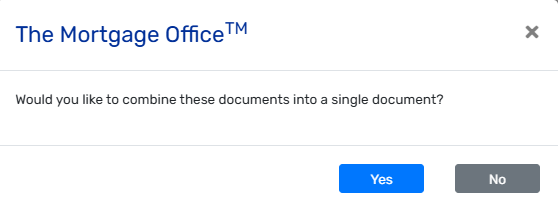
For a group, choose either Yes or No when asked to combine the documents into one.
What to check when testing
- Every field filled in, with nothing blank or showing the wrong data.
- Amounts, rates and dates are formatted correctly.
- Signature blocks show the right names.
- No odd spacing or blank pages.
Tip: While testing, highlight your merge fields in Word so they’re easy to spot in the output. Remove the highlighting when you’re done.
Editing more after testing
If something needs fixing, edit your original mapped Word file, not the one you just generated. The generated copy has loan data in it instead of merge fields.
- Open your original .dot file in Word and make the fix.
- Save it again as a Word 97–2003 Template (.dot).
- In Document Maintenance, double-click the document, click Browse, select the file and click Save.
- Navigate back to the test loan, refresh the Print Documents grid, then generate again.
- Repeat the editing and testing until it generates correctly.
|
If you see |
Try this |
|
A blank field |
Check the ID with the wrench icon, and confirm the loan has data in that field |
|
The document isn’t in Print Documents |
Confirm it’s Active and was added in Manage Template > Document Selection, then reopen the loan |
|
A missing signer |
Check the bookmark spelling, and check Required Signatory on the entity member |
|
The file won’t upload or isn't showing to select for upload in File Explorer |
Re-save as .dot and change the Browse filter to All Files |