
Common Symptoms
This issue can show up in several different ways. If a customer reports any of the following, check the hosts file first:
- "Unable to update license" or "No internet connection" errors during license update, even though internet access works fine
- HTTP 503 / service unavailable errors when the application tries to reach
themortgageoffice.com - Stuck in a repeating loop when trying to update the software license
- Redirect loops or the site not loading correctly in a browser
- "Check for updates" returning a 404 or page not found error
Step 1: Understand the Cause
The Windows hosts file can contain manual entries that hardcode www.themortgageoffice.com and/or services.themortgageoffice.com to a specific IP address. These entries override normal DNS resolution. If the IP is outdated or points to a decommissioned server, TMO will fail to load properly or redirect incorrectly, even though internet access otherwise works fine.
This typically happens when:
- A static hosts entry was added previously for testing, a VPN workaround, or a past support session and was never removed.
- TMO's hosting IP changed since the entry was added.
- An IT policy or script pushed the entry across multiple machines.
Step 2: Confirm the Hosts File Entries
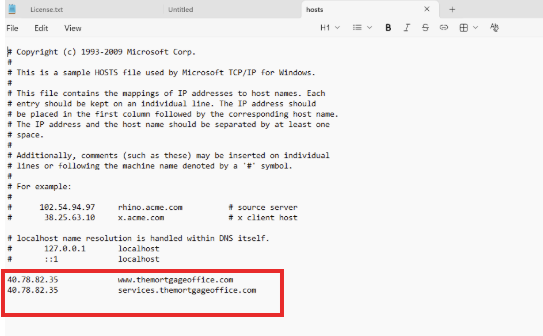
- Open Notepad as Administrator.
- Go to File → Open and navigate to:
C:\Windows\System32\drivers\etc\hosts - Select All Files in the file type dropdown so
hostsis visible. - Look for lines near the bottom similar to:
| Entry | Example |
|---|---|
| IP Address | 40.78.82.35 |
| Hostname 1 | www.themortgageoffice.com |
| Hostname 2 | services.themortgageoffice.com |
Step 3: Remove the Entries
- Open Notepad as Administrator (must be run as admin or the file won't save).
- Open the hosts file at
C:\Windows\System32\drivers\etc\hosts. - Delete the two lines referencing
themortgageoffice.com. - Save the file (Ctrl+S).
NOTE: DO NOT REPLACE THE ENTRIES WITH A NEW IP ADDRESS
Some customers ask whether they should update the hardcoded lines with a newer IP instead of removing them. Don't do this. Hardcoding any IP will break again the next time TMO's hosting IP changes. Delete the entries entirely and let DNS resolve the address normally.
Step 4: Flush DNS and Retry
- Open Command Prompt as Administrator.
- Run:
ipconfig /flushdns - Close all browser windows completely and reopen.
- Try accessing TMO again.
Advanced Configuration
If the Issue Persists:
- Confirm no other device on the network (proxy, firewall appliance, or another workstation) is pushing the same hosts entries via group policy.
- Check whether a VPN or antivirus client is re-adding the entry on reconnect.
- Verify DNS resolution directly by running:
nslookup www.themortgageoffice.comand confirming it returns a current, valid IP.
IT-Specific Behaviors
Group Policy: If this has affected multiple users, check for a Group Policy Object (GPO) or endpoint management script distributing these hosts entries organization-wide. A one-time manual fix will not hold if a policy re-adds the lines on every login or reboot.
Troubleshooting
If access issues continue after completing the steps above, contact TMO Support for further assistance.