
Skip to Section:
Important: These options aren't available by default. For access to the DossDocs integration, please contact your Account Manager.
Integration Overview
The TMO–DossDocs integration sends loan data directly to DossDocs, so you can generate compliant docs and disclosures for all 50 states with minimal data re-entering.
NOTE: For an interactive tour of the integration, please visit here.
Activating the Integration
To activate DossDocs, head to the Options gear in the top-right corner of TMO. Find the Integrations section near the top, then select DossDocs.
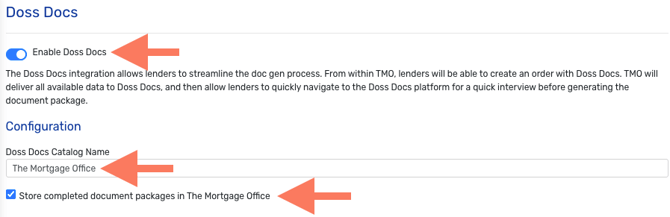
Once on this page, flip the toggle at the top to the On  position. Enter your TMO catalog name as The Mortgage Office, and check the box to store completed document packages in TMO, if you'd like.
Click OK at the bottom to save the change and exit Options.
Sending Application Data to DossDocs
In Loan Origination, open the loan you want to send to DossDocs. From the loan's Overview page, select More Actions in the top-right corner, then choose Order DossDocs from the dropdown.
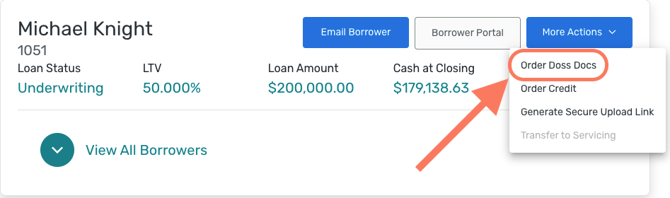
This sends the loan's data to DossDocs to begin the document generation process.
Navigating DossDocs
With the loan sent, continue the process in DossDocs. The left-side menu guides you through each step, starting with Lender Information and progressing through Title Data, Loan Details, and more, ending at Review.
The workspace on the right displays the data for your current step. For example, when you reach the Borrower Information section, the borrower's data will appear on the right for review.
NOTE: Available data synced from TMO will appear pre-filled in DossDocs, but review every page carefully. Due to some conditional inputs, it is possible that not all values will transfer, so it is imperative to review each page carefully.
Reviewing, Editing, & Receiving the Completed Docs in TMO
Work through each step to advance toward final document generation. The last step is a full review of all loan data for accuracy. If anything needs a correction, select the pencil icon  next to that item to edit it.
Clicking the pencil icon button takes you to that respective section so the change can be completed and saved.
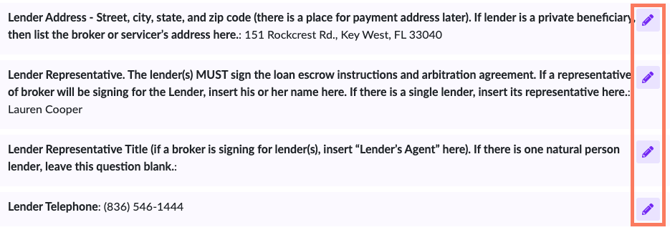
TIP: After saving a change, select Continue at the bottom to return directly to the Review step.
Payment Details: Submitting payment will be completed per doc set prior to the final step. Subsequent doc redraws will not necessitate an additional charge.
Once complete, the finished loan documents are available in several ways:
- Automatically returned to the loan application in TMO
- Downloaded directly from the DossDocs confirmation page
- Emailed to a specified address
- Downloaded as a single ZIP file
For questions about the DossDocs platform, contact their support team at support@dossdocs.com.