
How to NSF a Payment in The Mortgage Office®
This guide provides step-by-step instructions for marking a borrower’s payment as NSF (Non-Sufficient Funds) in The Mortgage Office Pro® (TMO), and outlines how to generate and send appropriate notices to borrowers and co-borrowers.
What is an NSF Payment?
An NSF (Non-Sufficient Funds) payment occurs when a borrower’s payment fails due to a lack of available funds. The Mortgage Office Pro® allows you to mark the payment as NSF, apply an NSF charge, and send a customizable notice via email or print.
Steps to NSF a Borrower Payment
This guide provides step-by-step instructions for marking a borrower’s payment as NSF (Non-Sufficient Funds) in The Mortgage Office Pro® (TMO), and outlines how to generate and send appropriate notices to borrowers and co-borrowers.
What is an NSF Payment?
An NSF (Non-Sufficient Funds) payment occurs when a borrower’s payment fails due to a lack of available funds. The Mortgage Office Pro® allows you to mark the payment as NSF, apply an NSF charge, and send a customizable notice via email or print.
Steps to NSF a Borrower Payment
- Navigate to Loan Servicing
- Go to Modules → Loan Servicing, or click the Loan Servicing
- Access All Loans
- Click All Loans on the left panel to open the list of available loan accounts.
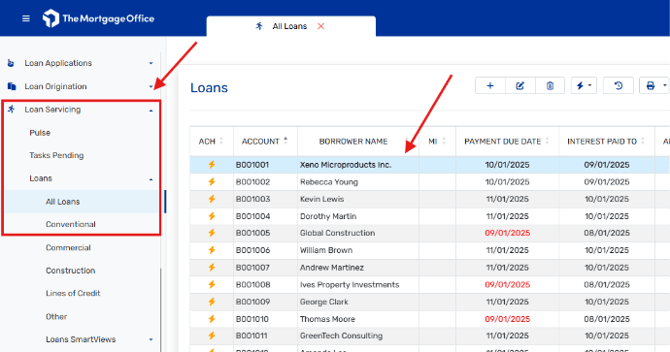
- Click All Loans on the left panel to open the list of available loan accounts.
- Select the Loan
- Scroll or use Find to locate and select the loan you'd like to modify.
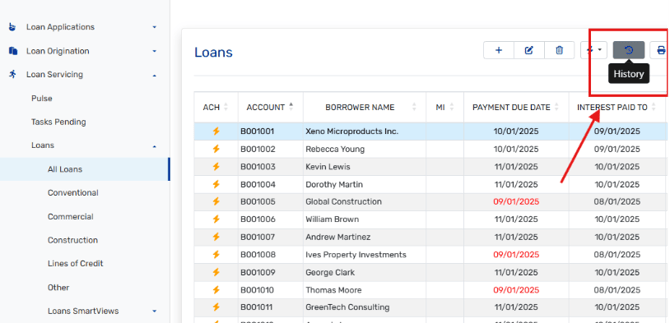
- Click or right-click on the loan record and choose History from the context menu. Open Payment History
- Select the Payment
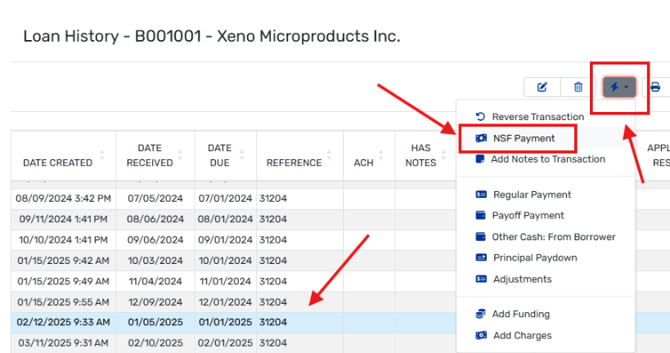
- In the history grid, select the specific payment you want to NSF.
- Launch the NSF Assistant
- Click or right-click the selected payment and choose NSF Payment.
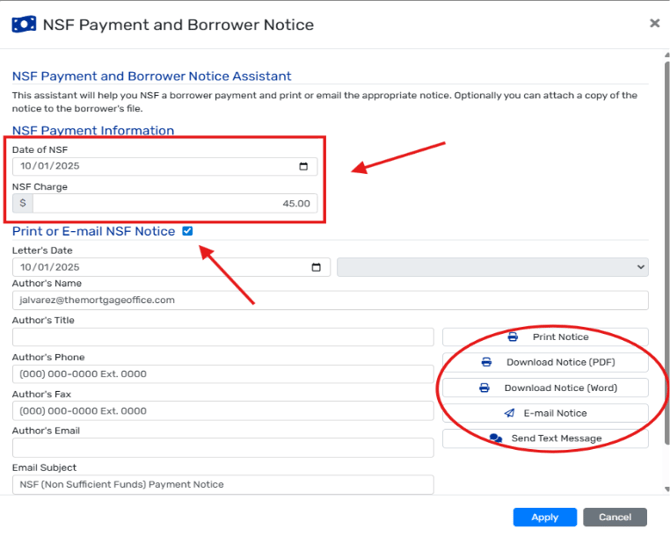
- Click or right-click the selected payment and choose NSF Payment.
- Enter NSF Details
- Date of NSF: Enter the effective date of the NSF event.
- NSF Charge: Specify the fee to charge the borrower. (Defaults can be modified in NSF Options.)
- Configure Notice Options
- Create Attachments: Attach a copy of the NSF notice to the borrower's digital file.
- Send Notice to Co-Borrowers: Enable this if all co-borrowers should receive a notice.
- Choose Notice Delivery Method
- Select Print or Email to distribute the NSF notice to the borrower.
- Customize Author Information
- Input author details including:
- Name
- Title
- Phone Number
- Fax Number
- Email Address
- Set the Notice Date and Date Format
- Input author details including:
- Finalize the Process
- Click:
- Download to generate a hard copy,
- Print to review the notice before printing,
- Email to send the notice electronically
- Click Apply to save the NSF entry or Cancel to discard changes.
- Click:
📝 Tips & Additional Information
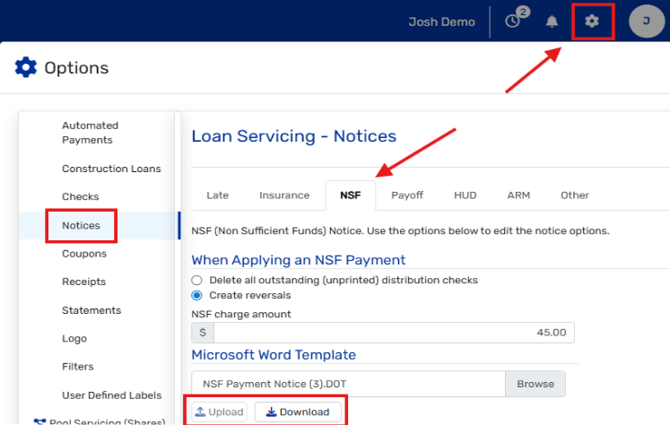
- Notice Template: The NSF notice is a Microsoft Word mail-merge file named NSF Payment Notice.DOT, located in Options.
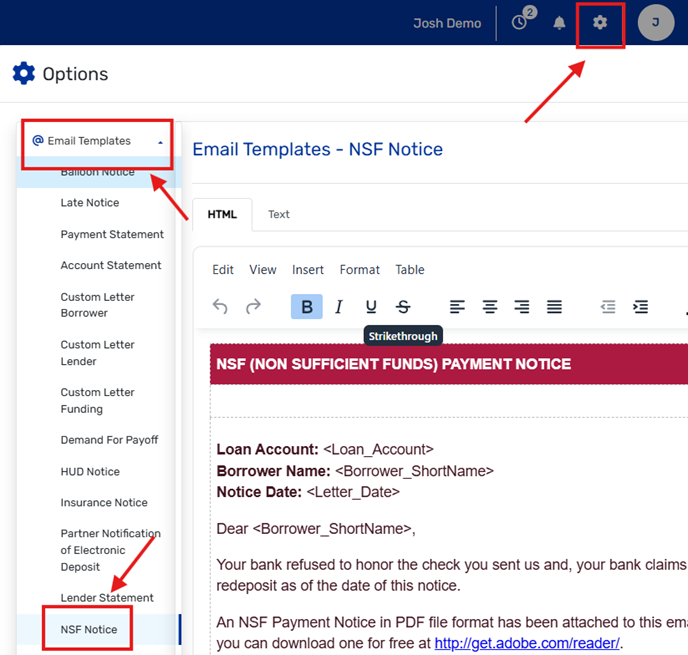
- Email Templates:
- Word Compatibility:
- If using Word 2007 or newer and the Save as PDF add-in is installed, notices will be attached as PDFs.
- For Word 2000 or older, notices are attached as Word docs.
- Preview Behavior:
- If the “attach as PDF” option is checked, the Preview button is disabled.
- Uncheck to preview the notice, then recheck before sending.
- Author Info: Saved locally on each user’s machine — not shared across TMO users.
- Co-Borrower Notices: Only sent if the co-borrower has Send Borrower Notifications enabled in their profile.
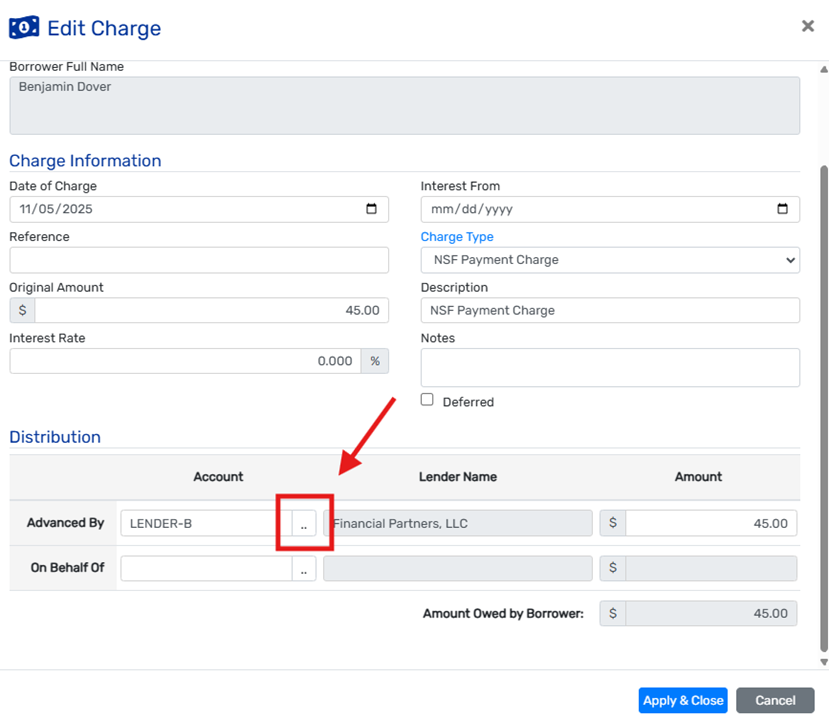
Changing the Vendor for a charge recipient can be done in the Charges section of the loan. From there, you can update the defaulted broker account to a Vendor of your choice. The selected Vendor will receive the NSF fee payout once it is paid by the borrower.
You’re now ready to process NSF payments in The Mortgage Office® — complete with notices, borrower fees, and audit trail documentation.