
Lender Statement of Account Generation Video Overview
Please watch the video below for an overview of the statement generation process.
Hands on Tutorial: To practice this workflow, please utilize the interactive tutorial available here.
NOTE: This enhanced functionality is coming soon and currently not live for all accounts. To inquire about activating this for your account, please contact your Customer Success Manager.
Getting Started in Tasks and Reports
To begin generating Lender Statements of Account, you'll first navigate to the Tasks and Reports section of TMO. From there, you'll see a section for Lender Reports & Notices. It is in this group of reports that you'll see Lender Statement of Account.
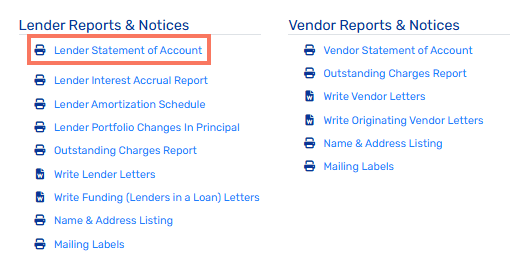
Clicking this will begin the Statement generation process, which initially will prompt the user to make some initial selections.
General Settings
When you select Lender Statement of Account, a new window will pop-up for you to make your initial selections for this statement generation.
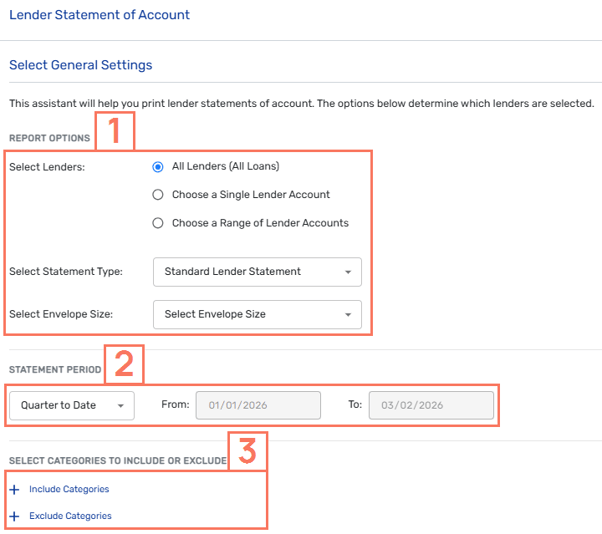
-
Select Lenders: Here you'll have the option of selecting all Lenders, a single Lender, or a range of Lenders. You'll also be able to select Envelope Size.
- Statement Period: This selection will determine what data is represented on the statement. Options such as All, Month to Date, Last Year, Custom Period, and more are available.
- Category Selections: If your generation would be benefited by including or excluding Lender categories, this is where you'll have the option to add that filtering.
Select Sections & Options
After making the initial selections for the Lender Statements, you'll then have additional options to determine what information is represented on the statement. These selections include visual reports like charts and graphs, funding activity, trust account details, and more.
Final Steps for Generation
The final step is to make some distribution choices, and then to lastly initiate the statements for generation and distribution.
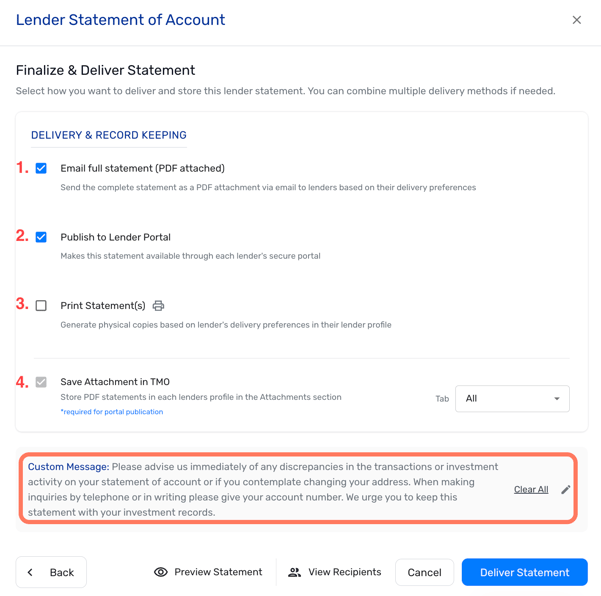
When making distribution choices, the primary options are:
- If the statement should be emailed as an attached PDF to the respective Lenders.
- If the statement should be published to the respective Lender Portal (Online Portals required).
- If the statement should be printed as a physical copy.
- Whether the statement should be added as an attachment to their Lender account in TMO.
If a custom message should be included in the statement, there are options to do so here with the Custom Message section at the bottom. When everything is ready to go, the last step is to click the Deliver Statement button to begin the generation and sending of the statements.
Note: Selecting Deliver Statement will fully handle initiating the generation of the state and the subsequent sending of these. There is no need to revisit the Lender Statement generation tool to send the statements after selecting this option.
At the bottom of this window you'll see the options to Preview the attachment for any further reviews, as well as the option to View Recipients to confirm prior selections.
During the Select Sections and Options process, you'll see there is the option to Exclude Inactive Lenders. When viewing recipients, it is possible you may still see "inactive" lenders from the list, but those truly "inactive" lenders will not receive the email.