
Add the document to a template
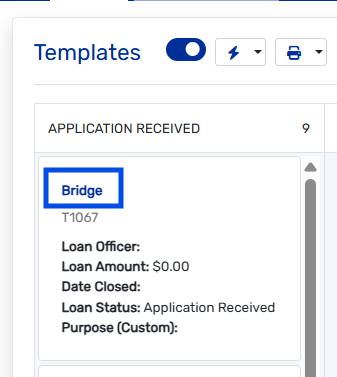
- Click Templates in the left navigation.
- Click the blue link for the template you want to update.
- Go to Manage Template > Document Selection.
- Drag the document or group from the left column to the right column.
- Click Apply.
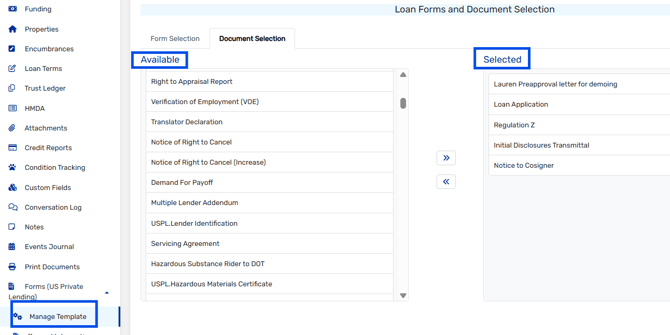
Important: Templates only affect loans created after you change them. To add the document to an existing loan, use Manage Template > Document Selection on that loan.
Tips
- Add groups instead of single documents where you can. It keeps the list short.
- If you update a document later, you don’t need to re-add it to the template. Replacing it in Document Maintenance is enough.